Quickly Silence iPhone Duo Without a Ring/Mute Switch
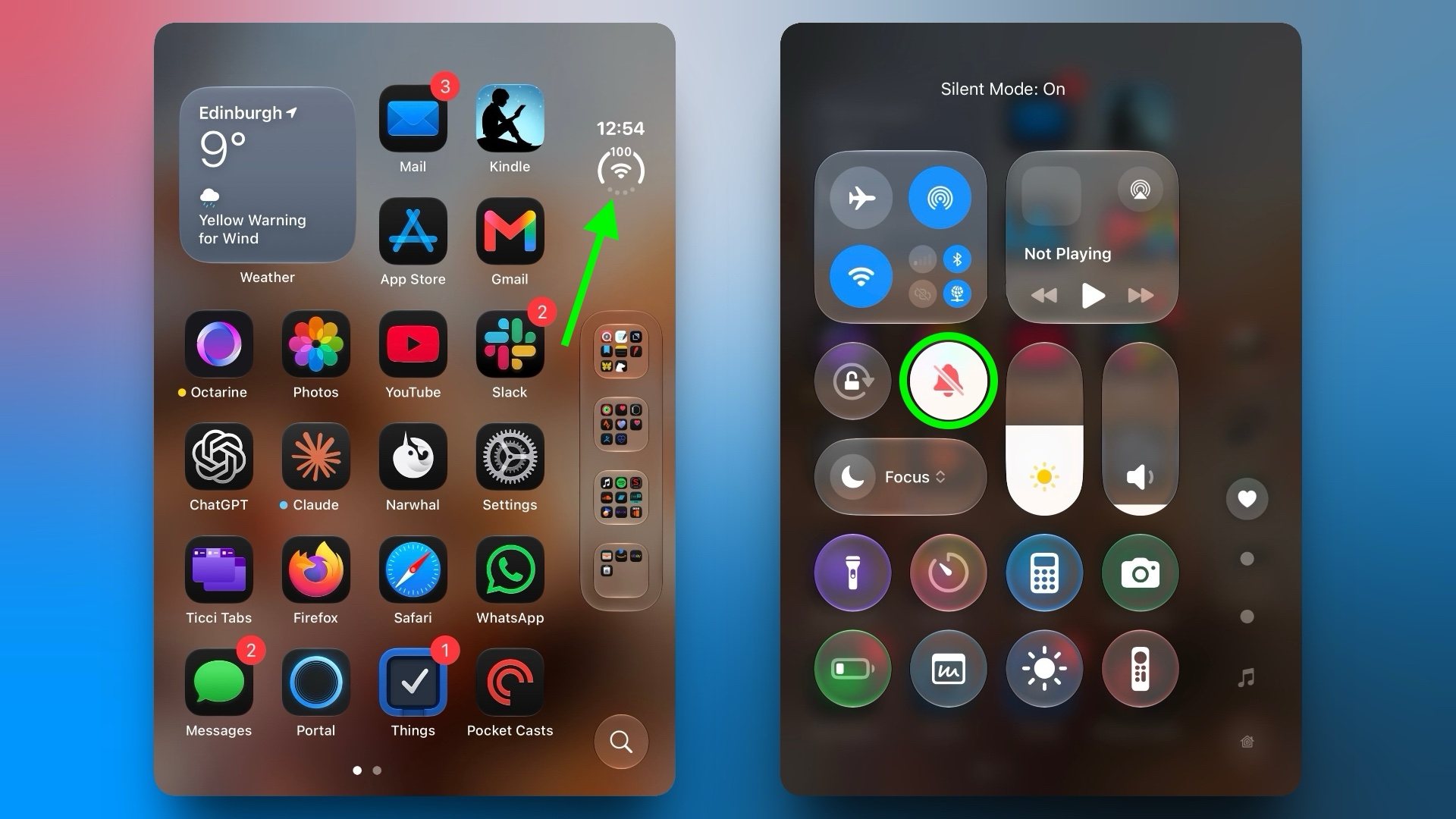
The new iPhone Duo drops both the classic Ring/Silent switch as well as the newer Action button, so there is no physical mute control on the device, and no way to assign the Silent Mode control to another button. That said, you can still silence the device pretty quickly – you just do it on-screen instead using a new way to invoke Control Center.
With your device unlocked, open Control Center by tapping the circular “status bar” icon, then tap the Silent Mode button (the bell icon). That’s all there is to it.
A Silent mode indicator appears in the status bar while it’s on, but you can hide this by toggling on the switch next to Settings ➝ Sounds & Haptics ➝ Show in Status Bar.
How to Add Silent Mode to Control Center
Silent Mode is included in the default set of controls at the top of the Control Center, but if you don’t see it, you can add it manually by following these steps:
Tap the circular status bar icon to open Control Center.
Tap the plus (+) icon in the top-left corner, then tap Add a Control at the bottom of the screen.
Scroll down to the Sounds section or use the search bar to find it, then select Silent Mode.
Keep in mind that Silent Mode mutes calls and alerts, but alarms and media audio still play. For scheduled quiet time, you can always set up a Focus instead.Related Roundup: iPhone DuoBuyer’s Guide: iPhone Duo (Buy Now)Related Forum: iPhoneThis article, “Quickly Silence iPhone Duo Without a Ring/Mute Switch” first appeared on MacRumors.comDiscuss this article in our forumsMacRumors: Mac News and Rumors – Front PageRead More